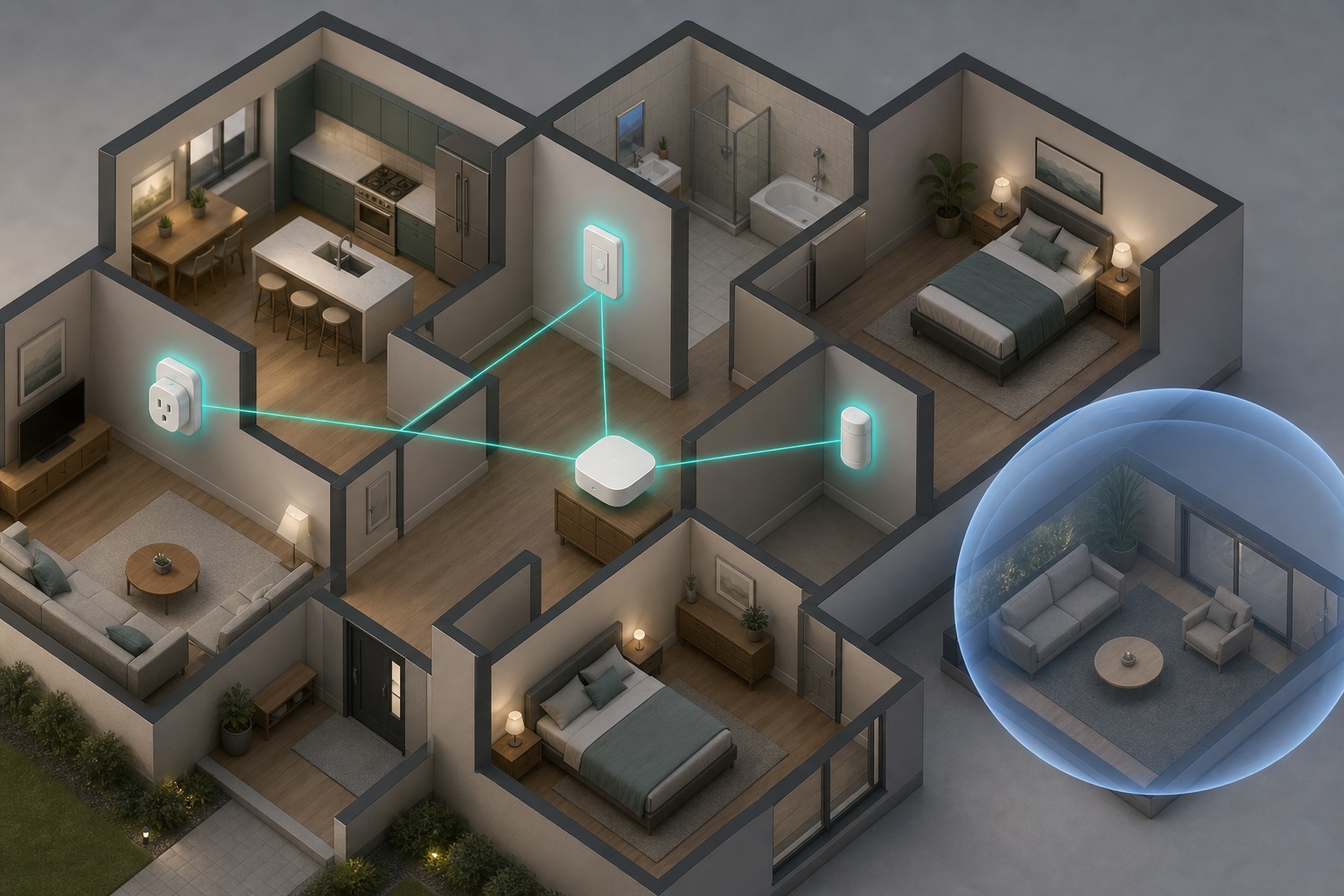
Fixing an unreliable Thread network starts with a diagnosis, not a shopping trip: find the symptom, trace it to its cause, then apply the one fix that matches. Most advice fails because it treats Thread like Wi-Fi. It isn't. Adding Wi-Fi coverage, plugging in a Wi-Fi extender, or dropping in another mesh Wi-Fi node does nothing for Thread: that's the wrong network entirely.
Nearly every Thread dropout, lag, or "No Response" comes down to a short list of causes: too few always-on relay devices, several border routers each running a separate Thread network, a weak or badly placed border router, 2.4 GHz interference, blocked local IPv6/mDNS traffic, or stale firmware. Work them from least to most disruptive: restart in the right order, find your symptom, fix that one thing, and save factory resets for absolute last.
Thread Isn't Wi-Fi, and Why That Matters
Thread is a separate low-power mesh, not a slice of your Wi-Fi: so nothing you do to Wi-Fi coverage repairs it. The two share the 2.4 GHz band, and the border router rides on your IP network, but the radios and the mesh are their own thing.
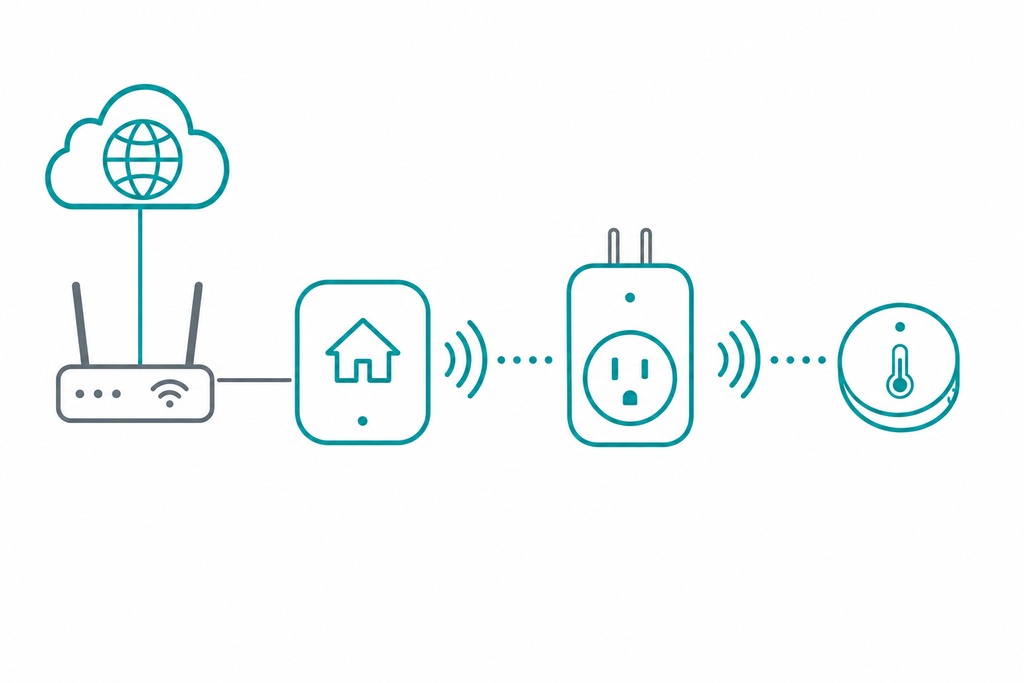
What is a Thread network? A self-healing, low-power mesh built on IEEE 802.15.4 and IPv6, used by Matter and Apple HomeKit accessories. Each device relays for its neighbors, and a border router bridges the mesh to your home's Wi-Fi or Ethernet.
Wi-Fi touches Thread in only two ways. First, both crowd the 2.4 GHz band, so a Wi-Fi channel that hops onto the Thread channel can crush it. Second, your border router's uplink and the local discovery traffic Thread relies on both ride on your LAN. That's the entire overlap. If your Thread devices are flaky, the culprit is usually one of six things: too few mains-powered relays, fragmented networks, a weak or misplaced border router, band interference, blocked IPv6/mDNS, or old firmware. The rest of this guide takes them in that order.
The Three Device Roles That Decide Reliability
Half of all Thread fixes come down to knowing which of three jobs each device does. A border router bridges the mesh to your IP network; a router relays inside the mesh; a sleepy end device sits at the edge and relays nothing.
| Role | What it does | Relays traffic? | Example devices |
|---|---|---|---|
| Border router | Bridges the Thread mesh to Wi-Fi/Ethernet and your controllers | Yes, plus IP gateway | Apple TV 4K, HomePod mini, Nest Hub (2nd gen), Echo (4th gen) |
| Router (mains-powered) | Relays messages hop-to-hop inside the mesh | Yes | Thread smart plugs, wired switches, always-on bulbs |
| Sleepy end device | Sits at the edge, sleeps to save battery | No | Battery sensors, buttons, many locks |
Here's the trap: battery-powered sensors, buttons, and locks are sleepy end devices. Adding ten more of them gives the mesh ten more mouths and zero new relays. Only mains-powered devices make it stronger.
Match Your Symptom to Its Cause
There is no universal "#1 fix" for Thread: the right first move depends on which failure you have. Read the symptom, then jump to the matching section.
| Symptom | Likely cause | Where to fix it |
|---|---|---|
| Devices across the home show "No Response" | Too few mains-powered relays; weak mesh | Strengthen the mesh |
| Works through the app/cloud but slow or fails locally | Blocked IPv6/mDNS or VLAN isolation | Unblock IPv6, mDNS, and VLAN |
| A whole area dies when one specific hub is unplugged | Fragmented Thread networks | Merge fragmented networks |
| Intermittent drops, worse near a microwave or router | 2.4 GHz interference | Cut 2.4 GHz interference |
| One recently added device misbehaves, others fine | Stale firmware or a failing radio | Update firmware / faulty hardware |
| Everything went flaky after adding a second hub | New border router spawned a separate network | Merge fragmented networks |
How to Fix an Unreliable Thread Network
If no single symptom fits — or several show up at once — don't jump around. Work these fixes as one sequence:
- Restart in the right order.
- Merge fragmented Thread networks.
- Strengthen the mesh with powered Thread devices.
- Cut 2.4 GHz interference.
- Unblock IPv6, mDNS, and VLAN traffic.
- Update firmware, then rebuild the mesh only if the fault survives everything above.
Each step gets its own section below.
See Your Thread Network First
Before changing anything, look at what's actually there: which border routers exist, whether they share one network, and whether local discovery works. On an iPhone you get most of the answer without any extra app.
| Tool | Platform | What it shows |
|---|---|---|
| Settings → General → About → Thread | iOS | Active network name and the role of nearby border routers |
| Home app → Home Settings → Thread Network | Apple Home (iOS 16+) | Which border routers share the network |
| Home Settings → Home Hubs & Bridges | Apple Home | Whether hubs sit on one Thread network |
| Google Home app → device settings | Google Home | Thread devices and their assigned border router |
| Discovery (Bonjour browser) | macOS | mDNS/Bonjour services: confirms local discovery is passing |
| nRF Thread Topology Monitor | Desktop (advanced) | Full mesh map: neighbors and hop paths |
If a diagnostic app lists two or three similarly named networks, you've already found your problem: skip ahead to merging them.
Restart in the Right Order
Restart the whole chain from the internet inward, then wait for the mesh to rebuild: this reversible step fixes more transient Thread faults than anything else and risks nothing. Do it before any deeper change.
- Restart the main Wi-Fi router. Wait until internet and local Wi-Fi are fully back.
- Restart every Thread border router, one at a time: a HomePod, Apple TV, Nest Hub, Nest Wifi Pro, Google TV Streamer, compatible eero, or SmartThings hub.
- Restart the phone or tablet running the smart-home app.
- Power-cycle the affected Thread accessories.
- Wait 10–20 minutes for the mesh to re-form before judging whether it worked.
Don't factory-reset accessories yet. A reset erases their commissioning credentials and can spawn brand-new pairing problems: it's the last resort, not the first.
Check the Border Router
A Matter-over-Thread accessory needs a powered, online Thread Border Router on your main LAN to reach your phone and your controllers. If that link is broken or the hub is stranded on the wrong network, coverage fixes won't help. Verify each point:
- It's genuinely a Thread Border Router, not merely a Matter or Thread device.
- It's online and signed into the correct smart-home account.
- It sits on the same main LAN as your controller: not a guest or IoT SSID.
- Its firmware is current.
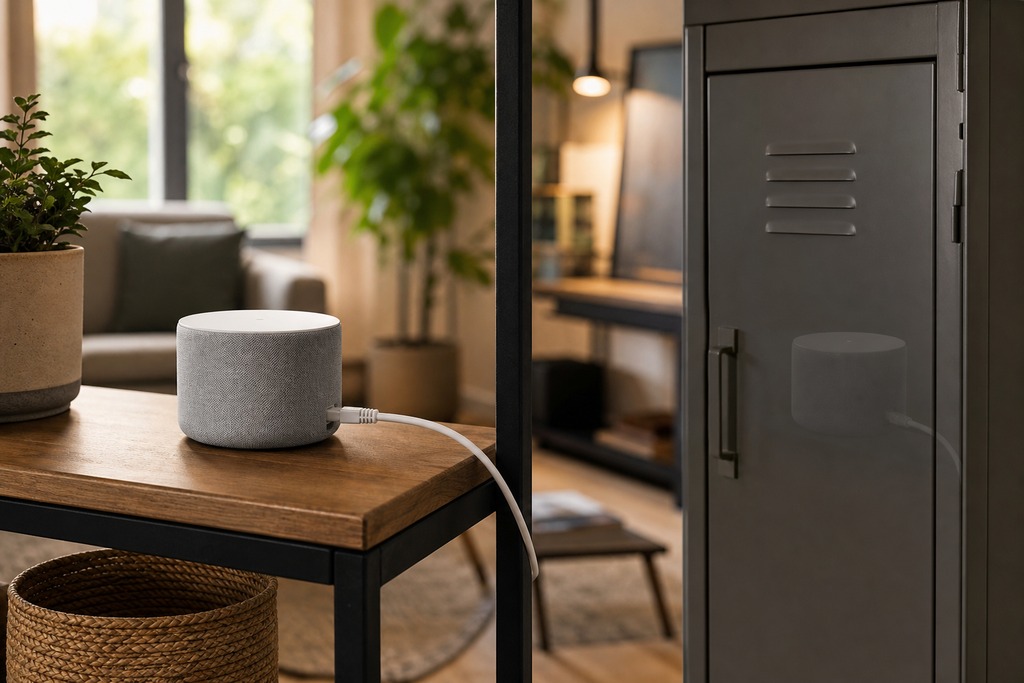
- It's out in the room, not inside a metal cabinet or tucked behind a TV.
- Ethernet-wired border routers (like the Wi-Fi + Ethernet Apple TV 4K) run steadier than Wi-Fi-only ones.
- One border router is a single point of failure; a second on the same network adds redundancy.
Apple's own troubleshooting (support article 102078) also flags Bluetooth, VPN or security software, and hub connectivity as things to check. Google's Android help tells you to confirm border routers are powered and on the same Wi-Fi, then restart both the hub and the controller.
Border Router Devices by Ecosystem
Here's what actually counts as a Thread Border Router in each platform, so you can identify what you own or add one. A Matter hub is not automatically a border router.
| Ecosystem | Border router devices |
|---|---|
| Apple | HomePod mini, HomePod (2nd gen), Apple TV 4K (2nd gen), Apple TV 4K Wi-Fi + Ethernet (3rd gen) |
| Nest Hub (2nd gen), Nest Hub Max, Nest Wifi Pro, Google TV Streamer | |
| Amazon | Echo (4th gen), Echo Show, Echo Hub, compatible eero routers |
| SmartThings | SmartThings Station, SmartThings/Aeotec Hub |
| Others | Aqara Hub M3/M2, Home Assistant with a compatible 802.15.4 radio |
Merge Fragmented Thread Networks
For many homes this is the biggest lever: several border routers, each running its own credentials, form separate meshes that cannot route through one another. Each Thread network carries its own key and dataset. Apple hubs share one network among themselves, Google hubs share their own, and Amazon hubs share theirs: so three border routers can mean three isolated islands. The Thread specification's credential-sharing feature lets border routers merge into one mesh, but whether your hubs support it depends on firmware.
Warning signs you're fragmented:
- Devices added through one ecosystem only work in that ecosystem.
- A whole area goes unreachable when one specific hub is unplugged, though other border routers stay online.
- A diagnostic app shows multiple similarly named Thread networks.
- Newly commissioned devices behave differently from older ones.
The fix: pick one ecosystem as the network owner, update every hub and accessory to current firmware, then verify the border routers report a merged network. Don't keep resetting different hubs hoping they'll join up on their own: resets create new networks, not shared ones.
Strengthen the Mesh With Powered Devices
Add mains-powered plugs, bulbs, or switches between the border router and the dead zone: only those relay traffic, so they're what actually extends coverage. Battery devices don't route, so more sensors won't help. Place relays with these rules of thumb:
- Roughly one powered relay per floor, or every 1–2 rooms.
- Keep hops short: indoors, aim for a relay within about 30–50 ft (10–15 m), closer through walls or metal. (Spacing figures vary across guidance: treat this as a range, not a hard limit.)
- Each relay should ideally "see" 2–3 others for redundant paths.
- Put a powered relay near exterior locks, the garage, and the basement, where signal is worst.
- Some guidance suggests one relay per 5–10 battery end devices, and warns that reliability degrades badly past 4–5 hops: useful as a sanity check, not gospel.
- Never switch a Thread plug or bulb off at the wall. If neighbors route through it, you've just deleted a relay.
The Thread Group's smart-home guidance confirms that powered devices act as mesh routers while battery devices normally talk through a parent: so more powered routers mean more paths and fewer drops.
Cut 2.4 GHz Interference
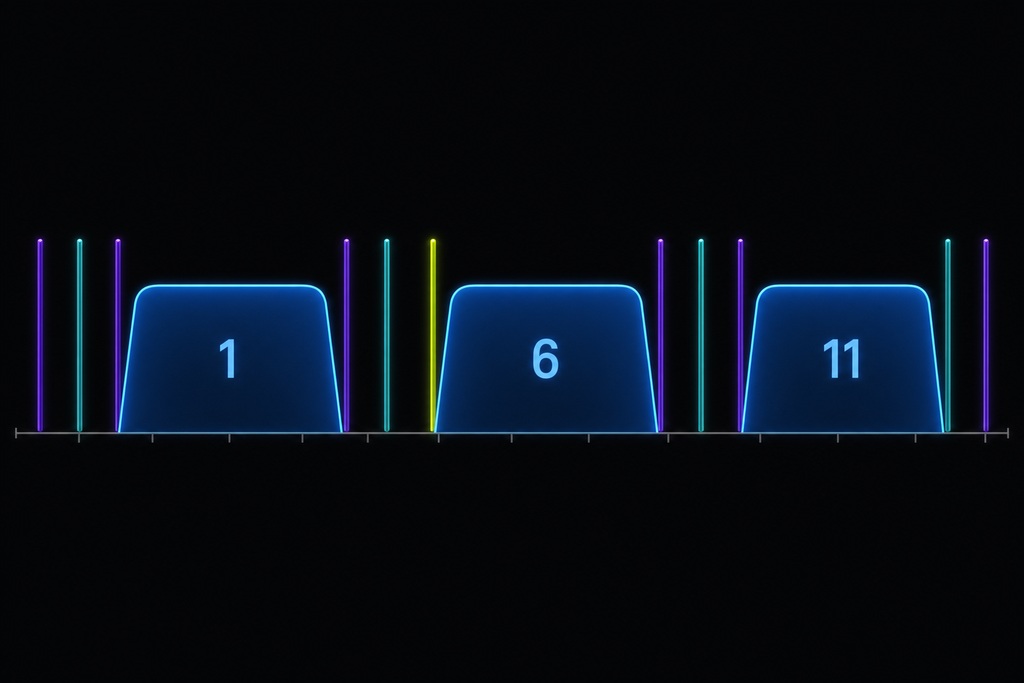
Pin your 2.4 GHz Wi-Fi to a fixed channel and keep it clear of the Thread channel: an "Auto" Wi-Fi radio that wanders onto Thread's channel is a common, invisible cause of drops.
| Radio | Set to | Notes |
|---|---|---|
| 2.4 GHz Wi-Fi | Channel 1, 6, or 11 (fixed) | Disable Auto so it can't hop onto the Thread channel |
| Thread | Channel 15, 20, or 25 | Channel 15 sits between Wi-Fi 1 and 6, giving good separation |
Thread runs in the same 2.4 GHz band as Wi-Fi, Zigbee, and Bluetooth. (Sources disagree on the exact channel count and range, so don't fixate on a precise number: the point is to separate the two bands, not memorize a table.) Physically, keep border routers 1–2 m (3–6 ft) away from Wi-Fi access points, USB 3 hubs, microwaves, TVs, and metal enclosures. Quick test: move a flaky device next to a powered relay. If it steadies, your problem is coverage or interference: not LAN settings.
Unblock IPv6, mDNS, and VLAN Traffic
This is the gap most troubleshooting guides skip, and it's where the "cloud works but local fails" symptom lives. Thread is IPv6-based, and Matter discovery leans on local multicast DNS (mDNS). Block either one on your router and devices go silent locally, even with a perfect mesh. On the router:
- Enable IPv6 on the LAN unless your platform explicitly says otherwise.
- Allow multicast/mDNS between controllers, hubs, and border routers.
- Disable wireless/client/AP isolation.
- Keep controllers and border routers off the guest network.
- Be careful with VLANs: they need mDNS reflection and IPv6 routing configured correctly.
- Temporarily disable VPNs, DNS filters, firewall appliances, and "IoT protection" features to test.
- With mesh Wi-Fi, keep wired and wireless backhaul on one unfiltered LAN.
The diagnostic tell: if a device responds through the manufacturer's cloud but stalls or fails on the local network, the cause is blocked local discovery or routing: not weak Thread radio. Chasing mesh coverage here wastes an afternoon.
Update Firmware on Everything
Many early Thread and Matter reliability bugs (dropouts, slow response, endless mesh reforming) were firmware, not physics, and got patched through 2024 and 2025. Update the whole chain:
- Border routers and hubs: these often carry 802.15.4 and IPv6 routing fixes. HomePod: Home app → Home Settings → Software Update. Apple TV: Settings → System → Software Updates. Nest/Google: Google Home app.
- End devices: check the maker's app (Eve, Aqara, Nanoleaf) for accessory firmware.
- Controller apps and phone OS — Apple Home/tvOS, Google Home, Alexa.
- The Wi-Fi router itself — outdated firmware can block the IPv6 multicast Thread needs for discovery.
Rebuild the Mesh (Last Resort)
Only after firmware, LAN, interference, fragmentation, and mesh density are all ruled out should you rebuild — and even then, start small and reversible.
- Keep every mains-powered relay on so the mesh can heal as you work.
- Power-cycle border routers one at a time (unplug ~60 seconds each) to force fresh mesh formation.
- Factory reset only the problem device, then re-add it near the closest border router so it joins the strongest node.
- Reboot the remaining devices near-to-far from the border router, so each joins an already-stable neighbor.
- Full reset (last of all): remove every Thread device, factory reset them, then re-add border routers, then powered routers, then battery end devices. Pair battery devices close to a border router before moving them to their final spot.
When It's Actually Faulty Hardware
When one device drags the whole network down no matter what you do, the cause is usually that device's own radio or firmware: a failing 802.15.4 radio, or an outdated Thread stack with known bugs. Remove it from your ecosystem and watch the rest: if everything else steadies, don't re-pair it in a loop. Contact the manufacturer for a firmware update or a replacement.
What Won't Fix It (Skip These)
These moves feel productive and change nothing. Skip them:
- A Wi-Fi extender or mesh Wi-Fi node. Wrong network. Thread and Wi-Fi are separate radios; more Wi-Fi coverage does nothing for Thread.
- More battery sensors "to strengthen the mesh." Sleepy end devices don't relay. Only mains-powered devices route.
- More border routers on separate networks. That deepens fragmentation. Extra border routers help only when they share one Thread network.
- A factory reset as your opening move. It wipes credentials and creates fresh commissioning failures. Reset last, never first.
- A reboot for a config problem. Power-cycling won't fix a fragmented network, a hub stranded on a guest/IoT VLAN, or blocked mDNS/IPv6. Those need settings changes.
- Fighting the device ceiling. One source pegs a practical limit near 250 devices per Thread network, above which routing tables bloat and latency climbs. If you're that large, split across ecosystems rather than piling onto one mesh.
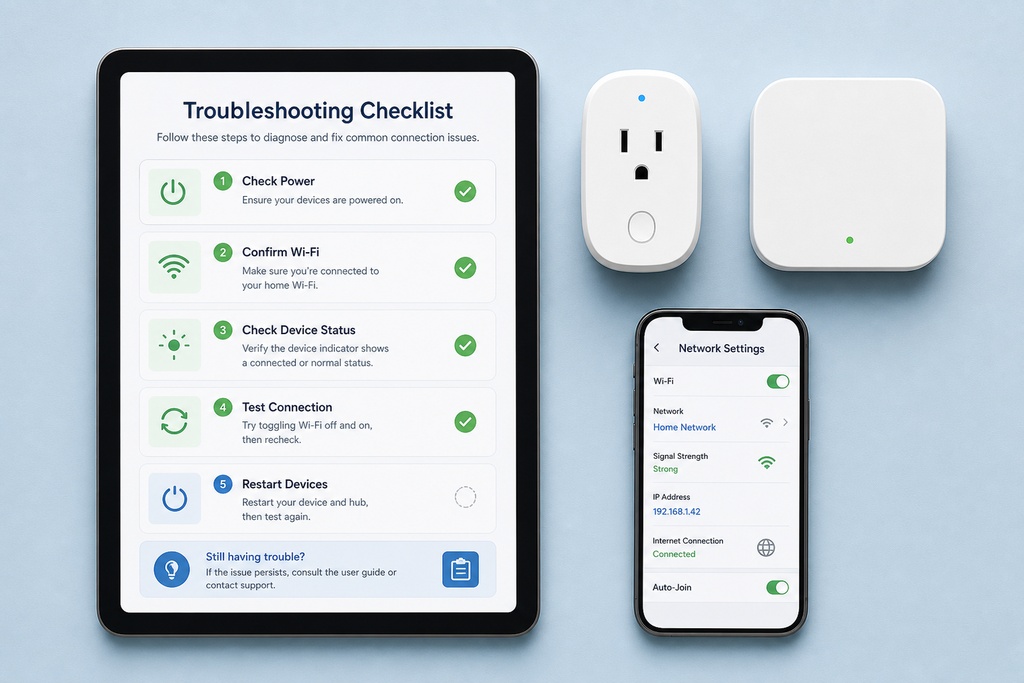
Quick Diagnostic Checklist
Run this top to bottom:
- ☐ Restarted in order: Wi-Fi router → border routers → app → accessories, then waited 10–20 min
- ☐ One unified Thread network, not several fragmented islands
- ☐ At least a few mains-powered relays spread through the home
- ☐ Border router central, on the main LAN, ideally on Ethernet, out of metal cabinets
- ☐ A second border router on the same network for redundancy
- ☐ 2.4 GHz Wi-Fi fixed to channel 1/6/11, separated from the Thread channel
- ☐ IPv6 and mDNS allowed; no guest/VLAN isolation; VPN/filters tested off
- ☐ Firmware current on hubs, accessories, apps, and the Wi-Fi router
- ☐ Factory reset reserved for the one device that still misbehaves
FAQ
How do I fix reliability on my Wi-Fi?
Update your router's firmware, set the 2.4 GHz band to a fixed channel (1, 6, or 11) instead of Auto, place the router centrally away from metal and microwaves, and replace aging hardware if it can't keep up. This stabilizes your Thread border router's uplink and cuts 2.4 GHz interference — but a healthier Wi-Fi does not repair a broken Thread mesh, which is a separate network with its own fixes above.
How to fix unreliable Wi-Fi?
First identify which problem you have: dead zones (add an access point or mesh node), congestion (change channels or move devices to 5 GHz), or interference (relocate the router). Then reboot, update firmware, and re-test. Remember this is a different job from fixing Thread — Wi-Fi extenders and mesh nodes do nothing for Thread reliability, because Thread runs on its own low-power mesh.
How to detect Thread network?
On an iPhone, open Settings → General → About → Thread to see the active network, or Apple Home → Home Settings → Thread Network to see which border routers share it. In Google Home, check a Thread device's settings for its border router. On a Mac, Apple's Discovery app reveals the mDNS services Thread depends on, and the nRF Thread Topology Monitor maps the full mesh for advanced users.
References
- Connectivity Standards Alliance — Matter specification (matter/Thread interoperability)
- Thread Group — "Thread in Homes" smart-home guidance and best-practices blog
- Apple Support — troubleshooting Thread accessories (support.apple.com/en-us/102078)
- Google — Android/Nest Help on Thread border routers (support.google.com)
- Home Assistant — Thread and border router documentation